

Append menu
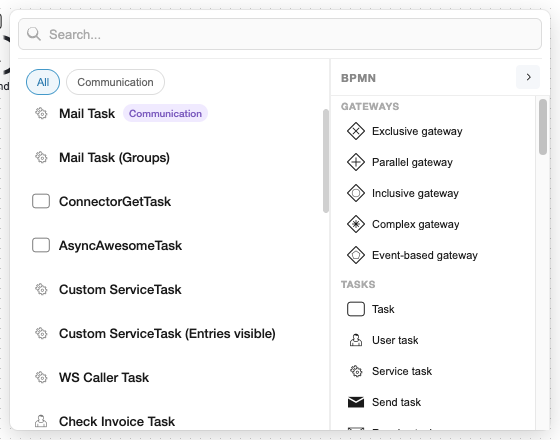
Append the next element from one panel that shows your element templates next to the plain BPMN elements.
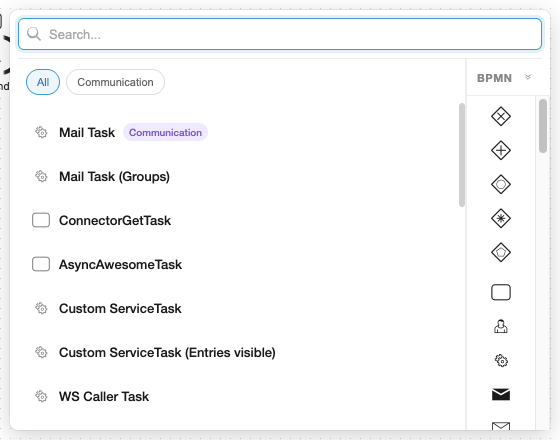
Open the menu
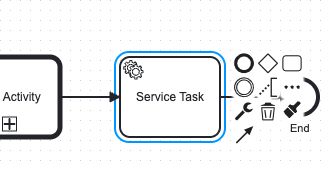
- Select an element on the canvas, for example a service task.
- Click Append element (the three-dot button) in the context pad, or press A.
- Click a template to append a preconfigured element, or click a BPMN element to append a plain one.
What the panel shows
| Area | Use |
|---|---|
| Search bar | Filters both sides. Templates match on name, description, keywords, category and the BPMN types they apply to; elements match on label, description and keywords. |
| Category chips | One chip per template category. Click to filter, click again or All to reset. |
| Template list | Name, BPMN type icon, category badge and the template's own icon. Hover a card to see its implementation (Java class, delegate, topic, …), property count and documentation link. |
| BPMN palette | Standard elements grouped as gateways, tasks, sub-processes, events and data. Icons only by default; the chevron next to BPMN shows labels. On Camunda 7 and 8, hover an element, or move to it with the arrow keys, to see what it is for. |
| Favourites | Pinned elements at the top of the palette (see below). |
Searching for a type name such as "service task" also lists every template that applies to that type. On Camunda 8, element keywords work too: "child process" finds the call activity.
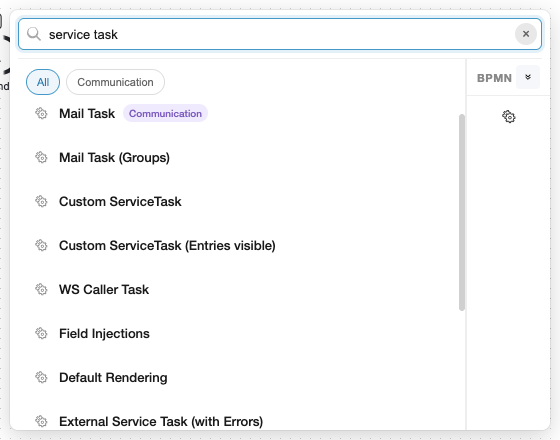
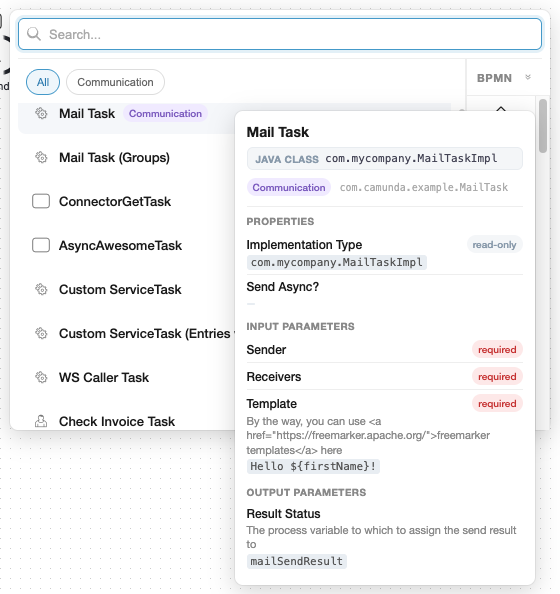
Templates for several element types
A template that applies to one type is appended on click. A template that applies to several types (for example service task and call activity) is selected first: the palette then enables only the matching types, and you click the one to create.
Favourites
Pin up to six elements at the top of the palette:
| Setting | Default |
|---|---|
miragon.bpmnModeler.favouriteBpmnElements | ["bpmn:ServiceTask", "bpmn:UserTask", "bpmn:CallActivity", "bpmn:ExclusiveGateway"] |
Favourites follow the same search and type filtering as the rest of the palette.
Keyboard
| Key | Action |
|---|---|
| ↓ / ↑ | Move through the template list or the BPMN palette |
| ← / → | Switch between the template list and the BPMN palette |
| Enter | Apply the focused template or element |
| Esc | Close without applying (a click outside does the same) |
Next steps
- Flow navigation: walk the diagram with the keyboard, then append with A.
- Element templates: where templates come from and how to write them.
- Template marketplace: share templates across projects.