

Element templates
Browse, preview and apply Camunda element templates from the properties panel, and keep your own templates next to your diagrams.
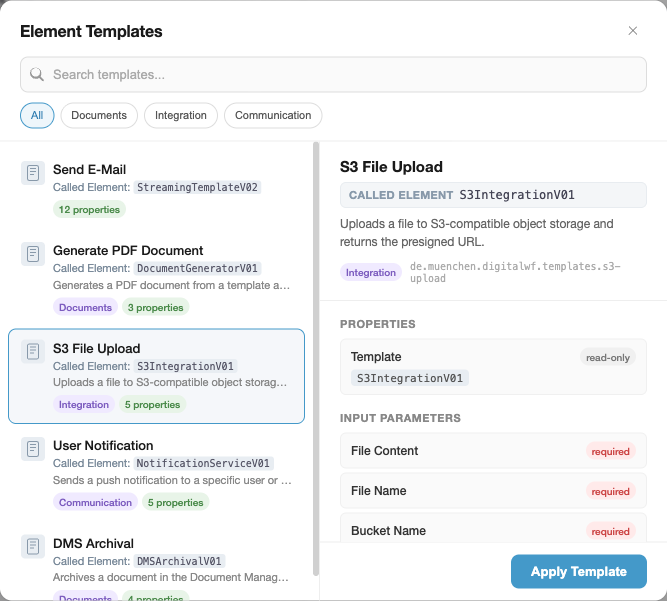
Apply a template
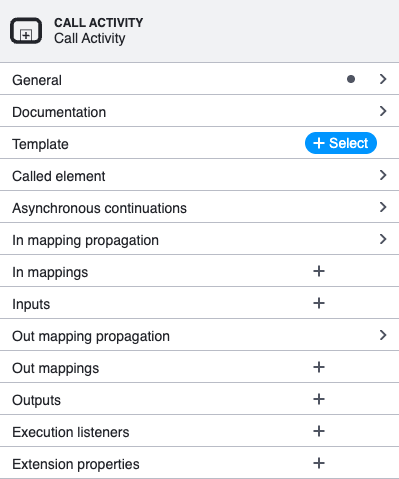
- Select an element, for example a service task or call activity.
- In the properties panel, open Template and click + Select.
- Pick a template to see its preview, then click Apply Template (or double-click the template).
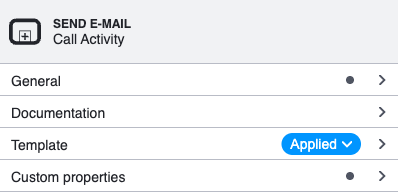
The chooser lists only templates that fit the selected element. After applying, the properties panel shows the template name with an Applied badge.
Find a template
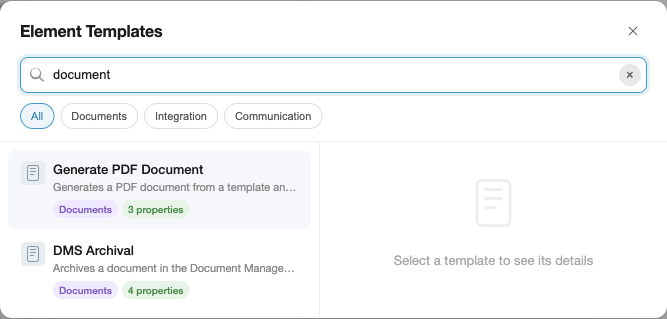
- Search matches name, description, category and
keywords(case-insensitive). - Category chips appear when templates have a
category. Click one to filter, click it again or All to reset. - Search and category combine; clearing one keeps the other.
Each card shows the template's implementation when it sets one of these bindings: camunda:topic (Topic), camunda:delegateExpression (Delegate), camunda:class (Java Class), camunda:expression (Expression) or calledElement (Called Element).
Keyboard
| Key | Action |
|---|---|
| ↓ / ↑ | Move through the list |
| Enter | Apply the selected template |
| Esc | Close without applying |
Where templates live
Put template .json files in <configFolder>/element-templates/ (.camunda/element-templates/ by default). The modeler collects them from the diagram's folder up to the workspace root, so you can share templates project-wide or scope them to a folder:
my-project/
├── .camunda/element-templates/
│   └── send-email.json          # every diagram
└── processes/
    ├── .camunda/element-templates/
    │   └── special-task.json    # only diagrams in processes/
    └── my-process.bpmn
The config folder name is set by miragon.bpmnModeler.configFolder. To share templates across projects, use a template marketplace.
Templates with an engines field (for example "engines": { "camunda": "^8.7" }) are shown only on Camunda 8 diagrams whose version matches. Templates without engines and all Camunda 7 diagrams are not filtered.
Write good templates
A template needs name, id, appliesTo and properties. These fields make it easier to find and use:
| Field | Effect in the chooser |
|---|---|
description | Shown under the name and in the preview. Say what the template does. |
category | Adds a filter chip and a badge. |
keywords | Searched, not shown. Add synonyms such as ["smtp", "notification"]. |
documentationRef | Adds a Documentation link to the preview. |
icon.contents | Icon on the card (data URI). |
For properties:
- Always set
label; without it the binding name is shown. - Add
descriptionto fields that need explaining. constraints.notEmpty: truemarks a field as required.editable: falsemarks a fixed value as read-only.- Set a default
valuewhere a sensible one exists. - Use
type: "Hidden"for technical bindings; hidden properties are left out of the preview and the property count.
{
    "$schema": "https://unpkg.com/@camunda/element-templates-json-schema/resources/schema.json",
    "name": "Send E-Mail",
    "id": "com.example.templates.send-email",
    "description": "Sends an email via the company SMTP gateway.",
    "appliesTo": ["bpmn:ServiceTask"],
    "category": { "id": "communication", "name": "Communication" },
    "keywords": ["smtp", "notification", "mail"],
    "properties": [
        {
            "type": "Hidden",
            "value": "${emailDelegate}",
            "binding": { "type": "property", "name": "camunda:delegateExpression" }
        },
        {
            "label": "Recipient",
            "description": "Email address or process variable (e.g. ${assignee})",
            "type": "String",
            "binding": { "type": "camunda:inputParameter", "name": "recipient" },
            "constraints": { "notEmpty": true }
        }
    ]
}
Next steps
- Template marketplace: share templates across projects.
- Append menu: add a templated element as the next step.
- Configuration: change the config folder.