

Token simulation
Play a process on the canvas: start a token and watch which path it takes, without deploying to an engine.
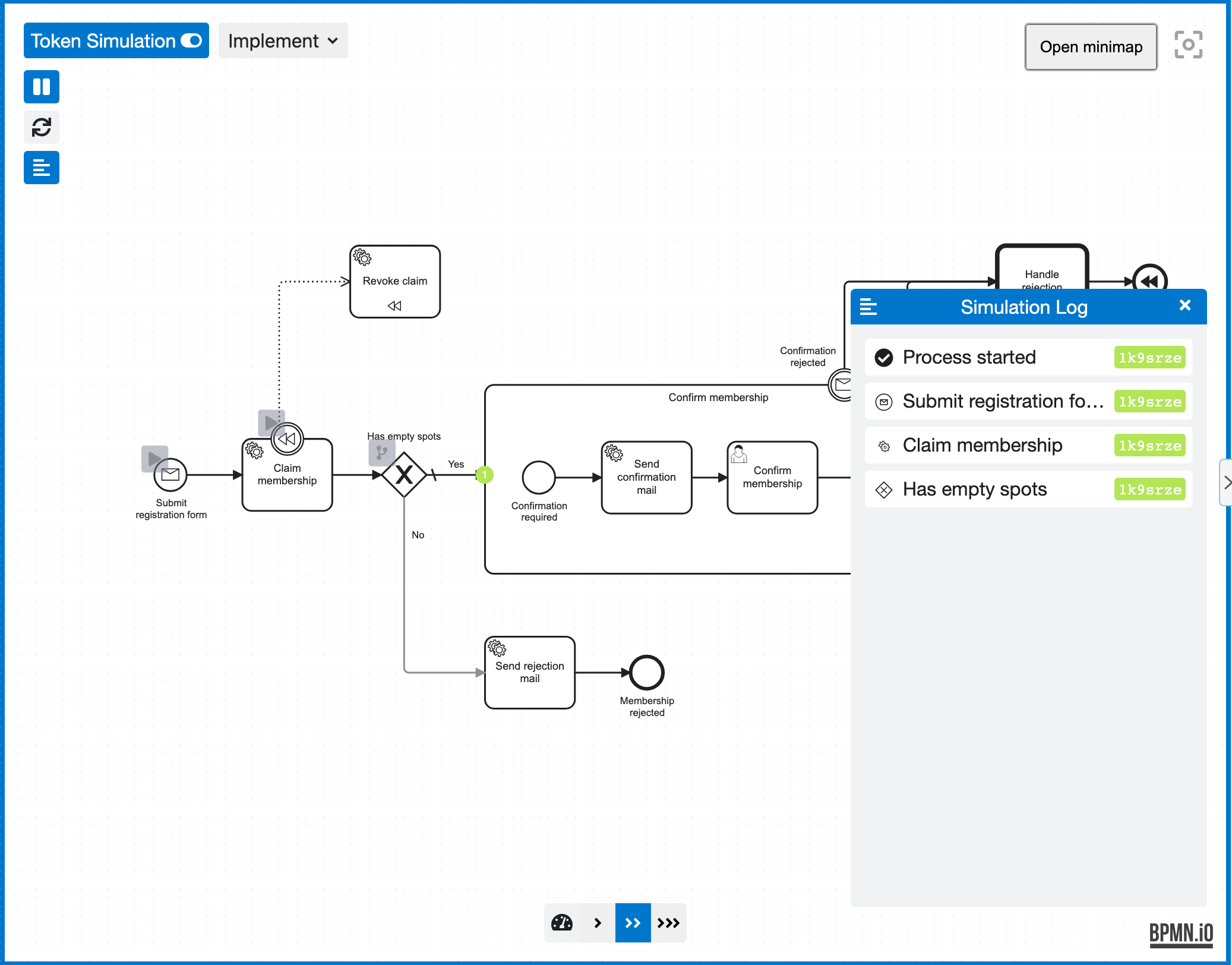
Token simulation uses bpmn-js-token-simulation and works in every mode: View, Design and Implement. It is engine-neutral, so it ignores Camunda implementation details such as job types or expressions.
Run a simulation
- Click Token Simulation at the top left of the canvas (next to the mode chip). The canvas gets a blue frame and editing is locked until you switch simulation off again.
- Click the play button on a start event. A token starts and runs along the sequence flows.
- At an exclusive or inclusive gateway, click the button on the gateway to choose the outgoing flow the next token takes.
- Click the button on a waiting event (for example a message or timer catch event) to trigger it.
Controls
| Control | Where | What it does |
|---|---|---|
| Play / pause | Left toolbar | Pause all tokens and continue |
| Reset | Left toolbar | Remove all tokens and start over |
| Log | Left toolbar | Open the simulation log, which lists every step of each token in order |
| Speed | Bottom of the canvas | Animation speed |
| Pause point | Button on an activity | The token stops at this activity until you continue it |
In Design and Implement, the keyboard works too: T switches simulation on and off, Space pauses, R resets and L opens the log.
Limits
- When you switch simulation on, elements it does not support get a warning marker and a notification.
- The simulation does not evaluate conditions or call your code. You decide the path at each gateway.
- On a Camunda 7 or Camunda 8 model, a simulation survives a switch between Design and Implement, but not a switch that rebuilds the editor (for example to or from View).
Next steps
- Linting: check the model against rules while you edit.
- Editor modes: View, Design and Implement.
- Jump to code and models: from a task to the code behind it.