

BPMN diff
See what changed between two versions of a .bpmn file as two diagrams side by side, not as an XML diff.
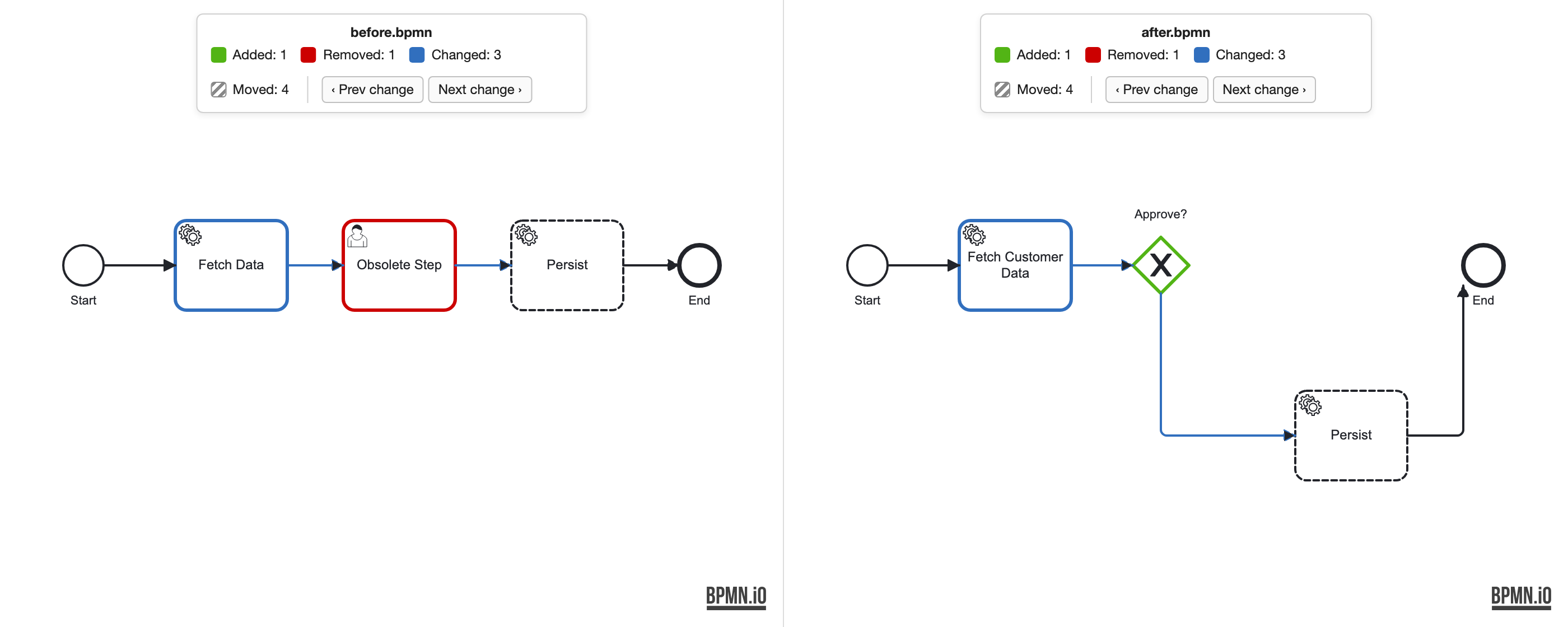
Open a diff
From Source Control. Click a modified .bpmn file in the Source Control view, or open any Git diff of one (history, pull-request review). The left pane shows the old version, the right pane the new one.
Compare two files. In the Explorer:
- Select two
.bpmnfiles, right-click, Compare Selected (BPMN). The first selected file is the before side. - Or right-click one file, Select for Compare (BPMN), then right-click the other, Compare with Selected (BPMN). The pick is kept until you compare or reload the window.
File comparisons also show each file name above its pane and a Swap sides (⇄) button.
If a Git diff still opens as XML, check workbench.diffEditorAssociations in your settings: a *.bpmn entry there overrides the modeler.
In IntelliJ, Show Diff and Compare Files open the same view.
Read the highlights
| Highlight | Shown in | Meaning |
|---|---|---|
| Green | After pane | Added |
| Red | Before pane | Removed |
| Blue | Both panes | Changed attribute (name, condition, implementation, …) |
| Dashed outline | Both panes | Moved: only the layout changed |
The legend above each pane counts the changes per type. Prev change and Next change step through all changes in flow order and move both panes together; the current element glows gold. Both panes are read-only but you can pan, zoom and use the keyboard.
The comparison uses bpmn-js-differ with the same colours as demo.bpmn.io/diff.
Next steps
- Linting: check the new version for errors.
- Deployment: ship the reviewed diagram.