Review a model change
See what changed in a .bpmn file as two diagrams side by side, with every added, removed, changed and moved element marked, instead of reading the XML diff.
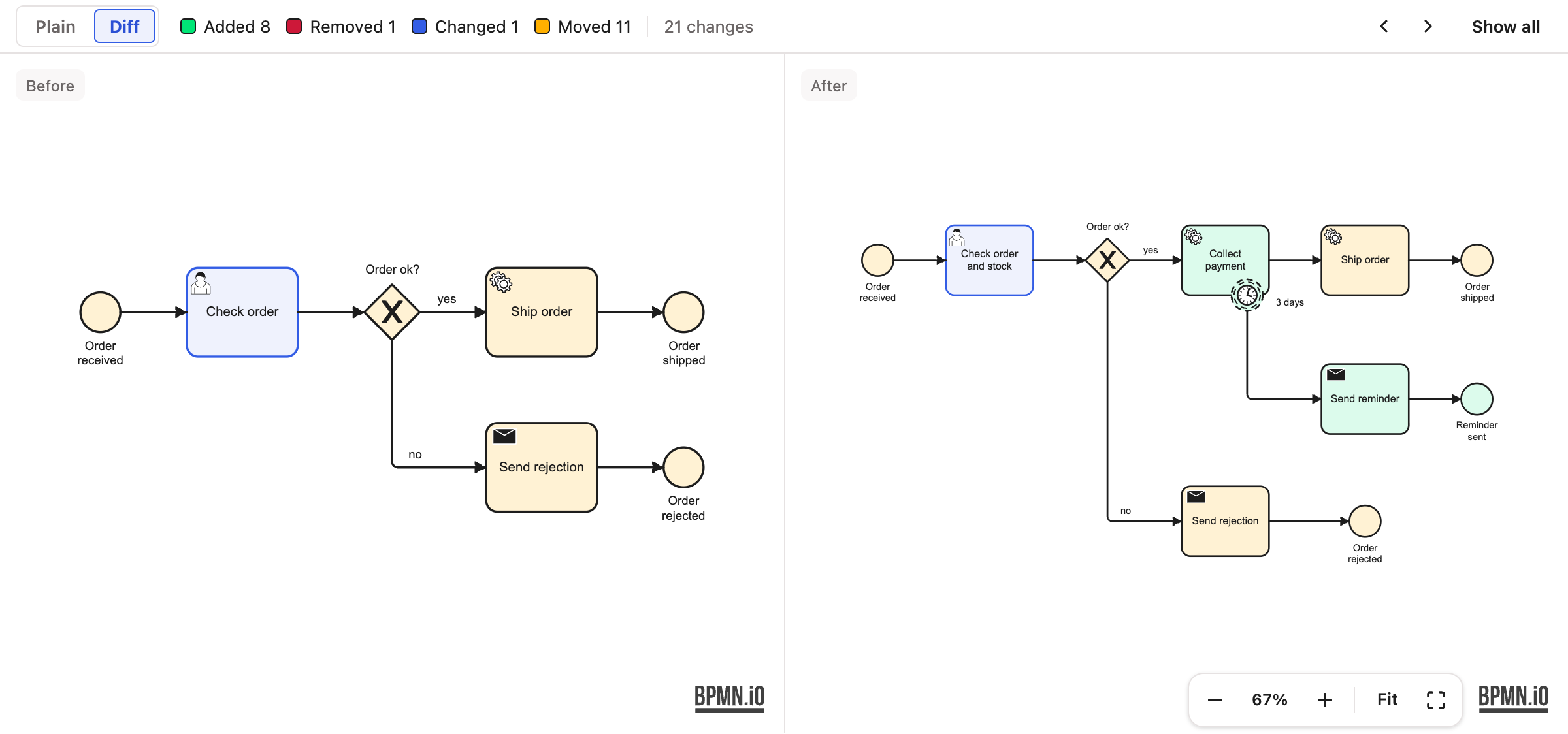
Where the diff appears
Diagit adds its panel above the text diff of every changed .bpmn file on these pages:
| Host | Page |
|---|---|
| GitHub and GitHub Enterprise | Pull request, Files changed |
| GitHub and GitHub Enterprise | A single commit |
| GitLab and self-hosted GitLab | Merge request, Changes |
| GitLab and self-hosted GitLab | A single commit |
The text diff below stays where it is. Diagit only adds to the page.
Plain and Diff
Diff shows the version before the change on the left, labelled Before, and after it on the right, labelled After. Plain shows the model as it is after the change. The panel opens on Diff when the file has both versions, and on Plain when the file was added or deleted.
Read the colours
Diagit compares the two versions element by element, by id:
| Colour | Marks | Meaning |
|---|---|---|
| Green | Added | The element exists only in the new version. |
| Red | Removed | The element exists only in the old version. |
| Blue | Changed | Same id, but its content changed: name, type, flows, conditions or properties, including zeebe:* extensions. |
| Yellow | Moved | Same id and content, only its position, size, label or line changed. |
The legend in the toolbar counts the elements in every category.
An element with a new id
Diagit matches elements by id. When a change gives an element a new id, it shows as removed on the left and added on the right.
Step through the changes
The arrows for the previous and the next change in the toolbar select one change after the other and zoom both sides to it. Next to them Diagit shows which change is selected, for example "2 of 7", or how many changes there are when none is selected. Show all clears the selection and fits both diagrams again. The overview is also one step of the arrows: after the last change they show all changes, then the first change again, and the same way back. The −, + and Fit buttons zoom by hand.
The code under the diagram
Code at the end of the toolbar hides the text diff below the panel and shows it again. Diagit keeps your choice for each file until you close the page.
What Code shows follows the selection. With no change selected, a bar under the diagram reads All changes · Whole file and the text diff below shows the whole file, with its review comments. Select a change with the arrows, and the bar names the element and its type, and below it Diagit shows only the XML of that element, without the layout (BPMNDI), in one column like the text diff: removed lines marked −, added lines marked +, the unchanged lines of the element around them. The text diff steps aside meanwhile. For an element that only moved, the bar says Only the layout changed. Show all or Esc go back to the whole file. The diagram keeps its size, the XML below it grows with its length.
The code starts shown. To start with the diagram alone, choose Start with the diagram alone under Code under diagrams on Diagit's options page. The change applies to open pages right away. Some files keep their code even then:
- A file with review comments starts with the code shown, and Diagit shows it as soon as comments load.
- A link to a line or a comment of the file, such as
#diff-…R42or#note_123, opens the file with its code. - When the panel shows an error instead of a diagram, the code stays.
Apart from the start you choose, Diagit never hides the code by itself. When you hide the code of a file with review comments, a number on Code counts the comments you do not see.
Look at one side
Expand next to Fit opens the panel in a larger dialog, with the file path in its toolbar. From there, the full screen button shows it on the whole screen. Press it again or Esc to go back.
Expanded and in full screen, a switch at the top shows Before or After alone, on the full width and with its markers. The arrows then step through the changes of that side only. Click the pressed side again to see both sides. To start with one side, use the expand button in the top right corner of that side. On Diagit's own diff page, which has no dialog, this button opens the side in full screen right away. Leaving the dialog or full screen always brings back both sides.
Limits
- The diff covers BPMN. For DMN, Wardley Maps and the other notations a pull request shows only the text diff. Open the file to see the diagram.
- Moving many elements, for example after an automatic layout, marks all of them as moved. Their content is unchanged.
Next steps
- Private repos on github.com: the one-time setup for private repositories.
- Self-hosted instances: the diff on your own GitLab or GitHub Enterprise.