Add-ons
See and manage everything your workspace adds to the BPMN editor in one place: BPMN plugins, bpmnlint rule packages, element templates and template marketplaces. Allow or revoke code, and turn templates on or off.
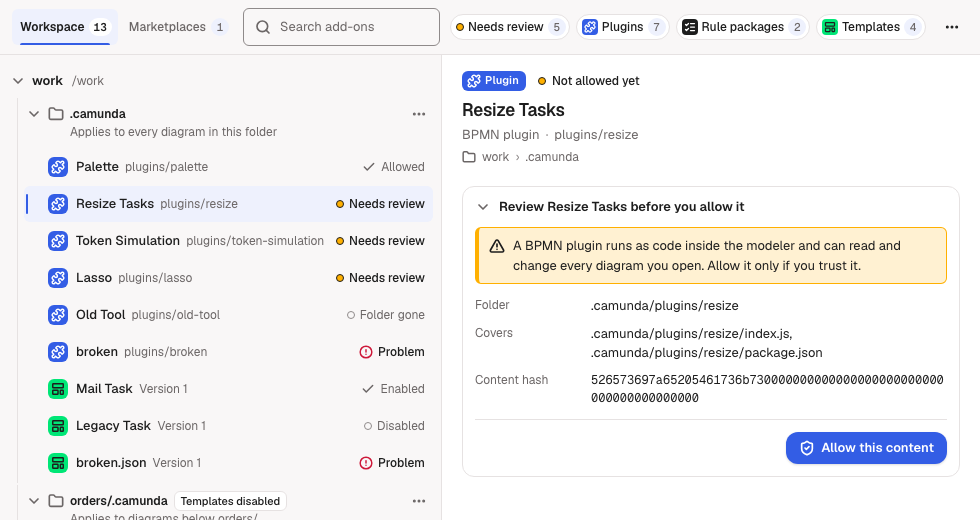
Open the view
Click the Miragon comet in the activity bar to open the BPMN Modeler container. Add-ons shows there whenever a folder is open; Deploy shows above it while a diagram is open. Review… on a plugin or rule package notification opens the view too (see Allow code). Miragon BPMN Modeler: Review Add-ons in the Command Palette opens it on the add-ons that need your review.
What it lists
The view lists the open workspace only, never other projects. Two tabs at the top split it, each with its count:
- Workspace: your workspace folders, in the order they are open. Under each folder, one source per config folder (the root's
.camunda/, and nested config folders whose diagrams you opened) and per package folder, then the add-ons of that source by name. - Marketplaces: one source per registered marketplace, with its cached templates.
Click a folder or source to close or open it; a marketplace starts closed, as it can hold many templates. A closed one shows how many add-ons it holds, and an amber dot when one of them needs your review.
Each row shows the add-on's kind (an icon and the word for a screen reader), its name, and on the right one status:
- Needs review with an amber dot: the add-on waits for you to allow it.
- Problem: it cannot be read or used. The details say why.
- Otherwise its state, such as Allowed, Enabled or Disabled.
The details show each plugin's and rule package's full state:
| State | Meaning |
|---|---|
| Allowed | You allowed it, here or in another worktree of its repository. It runs, whatever its files hold now. |
| Not allowed yet | Never allowed. It does not run. |
| Declined this session | You left it unchecked in the list, or closed the list, this session. |
Search and filters
The search field narrows the list of the open tab to the add-ons whose name, path or version, kind, state, engine, source or folder contains every word you type. Escape in the field clears it.
The chips below it filter by kind (Plugins, Rule packages, Templates) and to Needs review. Each chip counts its add-ons in the open tab. Pick several kinds to see all of them; Needs review applies on top. While a search or filter is on, every folder and source with a match opens, so no match stays hidden; you can still close one, and it stays closed while you refine the search or change the chips. When you clear the search and the chips, the folders and sources show as you left them before. When nothing matches, Clear filters removes the search and the chips.
Details
Click a row to see its details:
- the kind, the state, the name, then what it is, its path or version and its engine;
- where it lies: the folder and the source;
- a problem or a note, if the add-on has one;
- what you can do with it, as buttons: Revoke, Disable or Enable;
- for code you can allow, the review: what the code can do and how far an allowance reaches, its folder, its version (rule packages) and Allowed in: every worktree of its repository, or this folder only outside a repository, with Allow at its end.
When the view opens, it starts on the tab you chose last. Until you choose one, it starts on Workspace, or on Marketplaces when the workspace lists no add-on and a marketplace is registered. Each tab selects the first add-on that needs a review, else the first add-on, among the rows it shows, so a closed marketplace selects none of its templates until you open it. Your selection stays when you close its folder or source. When the view reloads, it keeps the tab you chose, the selection and the folders and sources you opened or closed; the search and the chips start empty.
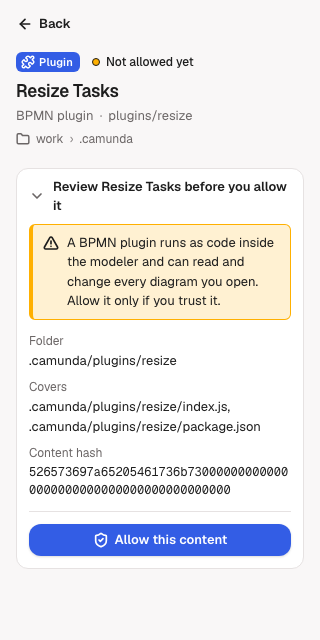
From 640 pixels wide the list and the details stand side by side. Narrower, as the side bar usually is, the details open in place of the list; Back returns to the list where you left it. The view follows its width as you resize it.
Allow code
Select a plugin or rule package that needs a review, check what its review says, then click Allow. The allowance covers the add-on in every worktree of its repository, later changes included, so a pull, an update or an edit runs without asking; outside a git repository it covers the add-on's folder only. Its rows in other worktrees of the repository show as Allowed too. A second clone, another repository and a new add-on ask once. Every open BPMN editor that offered an allowed plugin reloads with it. When the add-on's folder moved into or out of a repository since the view showed it, Allow asks you to check the list again.
Review… on a notification opens the view at the waiting plugins or rule packages when every one of them lies inside an open folder: it switches to the right tab, clears a search or filter that hides the first of them, selects it and opens its review. The notification then counts as answered for this window. Otherwise, for example when a rule package is linked from outside the workspace, Review… shows the list to check, as in BPMN plugins.
Review Add-ons in the Command Palette opens the view on the Workspace tab with only Needs review on, every folder and source with an add-on to review open. It clears the search and the kind chips, keeps your selection when it needs a review, else selects the first add-on that does, and moves focus to it. When the workspace lists add-ons but none needs a review, the list says No add-ons need review.; Clear filters shows everything again.
Revoke
Revoke takes the allowance back in every worktree of the add-on's repository, together with any approval of it from an earlier version. A plugin or rule package that cannot be read still offers Revoke while it is allowed. A plugin stops at once: open editors reload without it. Its copy in VS Code's global storage is no longer loaded and is removed once it has gone unused for 30 days, or with Remove unused plugin copies. A rule package's rules are skipped from the next lint; code it already ran stays loaded until you reload the window. No notification in this window asks about it again, in any worktree; allow it again here. Other windows ask again.
The view lists only add-ons this workspace holds. An allowance of an add-on that only another branch has stays, and you revoke it from a worktree that holds the add-on. Revoke an add-on before you check out code you do not trust: once allowed, whatever its files hold runs.
Templates
Each template with an id offers Disable or Enable in its details. Each config folder or marketplace offers Disable templates or Enable templates for all of its templates in its ⋯ menu. A disabled template is left out of new choices in the template chooser and the append menu; elements that already use it keep it. VS Code keeps the switches for you, outside the repository: a config folder's for this workspace, a marketplace's for all your projects once you registered it for all of them, else for this workspace.
Marketplaces and plugin copies
The Marketplaces tab shows Add marketplace… and Update marketplaces above its list. With no marketplace registered, it says so and offers Add marketplace…; when the registrations cannot be read, it says why. Each marketplace's ⋯ menu offers Remove, which asks before it unregisters the marketplace. The marketplace commands work as before.
More actions (⋯, next to the search field) holds Add marketplace…, Update marketplaces and Remove unused plugin copies in either tab. Remove unused plugin copies deletes every plugin copy in VS Code's global storage that no open editor of this window uses. Another window that still needs a copy writes it again the next time an editor there opens.
The result of an action shows at the top of the view; Dismiss closes it.
Refresh
The view reads again when it is shown and whenever plugins, rule packages, templates, allowances or settings change. It does not watch node_modules: after an npm install, click Refresh Add-ons in the view's title bar.
Appearance
The view wears the Miragon look, with its own colours, fonts and text sizes, in light, dark and high contrast. It follows whether your VS Code theme is light, dark or high contrast, not its colours. With miragon.bpmnModeler.colorTheme set to light it stays light, and keeps high contrast when your theme has it (see Configuration). It does not follow the editor font size; VS Code's zoom scales it.
Keyboard
Tab reaches every control: the tabs, the search field, the chips, More actions, the folders and sources, the rows and the buttons in the details. Enter or Space presses the focused control.
| Where | Key | What it does |
|---|---|---|
| Tabs | ← / →, Home / End | Switch to the other tab |
| Search field | Escape | Clear the search |
| An open ⋯ menu | ↓ / ↑, Home / End | Move through its items |
| An open ⋯ menu | Escape | Close it and return to its button |
| An open ⋯ menu | Tab / Shift+Tab | Close it and move on from its button |
IntelliJ
The IntelliJ plugin shows the same page as the Add-ons tab of its BPMN Modeler tool window, for the open project; Review… opens it with the item selected, Review Add-ons (Tools ▸ Miragon BPMN Modeler, or Find Action) opens it on what needs your review, and Refresh Add-ons sits in the tool window's title. A tool window docked at the bottom is usually wide enough for the list and the details side by side. In a project you did not trust in the IDE, plugins and rule packages offer no Allow and each says why; see Project trust. See Getting started in IntelliJ.
Next steps
- BPMN plugins: add plugins and what an allowed plugin can do.
- Linting: rule packages and how they are checked.
- Template marketplace: register marketplaces.