DMN diff
See what changed between two versions of a .dmn file as two decision requirements diagrams (DRDs) and their decision tables side by side, not as an XML diff.
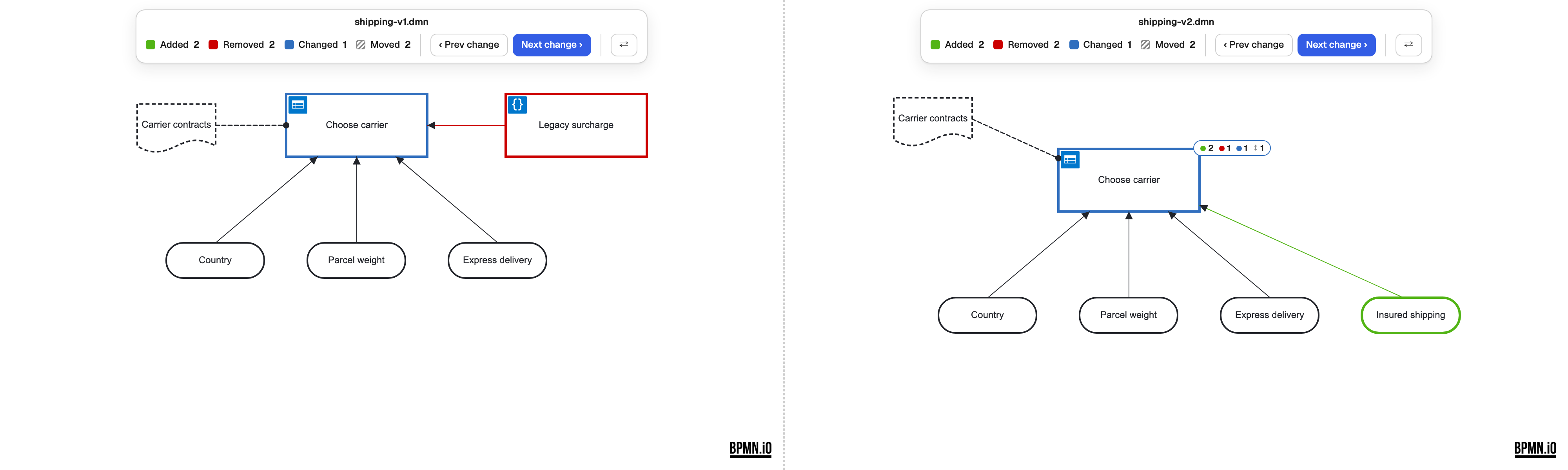
Open a diff
From Source Control. Click a modified .dmn file in the Source Control view, or open any Git diff of one (history, pull-request review). The left pane shows the old version, the right pane the new one.
Compare two files. In the Explorer:
- Select two
.dmnfiles, right-click, Compare Selected (DMN). The first selected file is the before side. - Or right-click one file, Select for Compare (DMN), then right-click the other, Compare with Selected (DMN). The pick is kept until you compare or reload the window.
File comparisons also show each file name above its pane and a ⇄ button that swaps the sides (its tooltip reads Swap sides).
If a Git diff still opens as XML, check workbench.diffEditorAssociations in your settings: a *.dmn entry there overrides the modeler.
Read the DRD
Both panes open on the DRD. Decisions, input data, business knowledge models, knowledge sources, text annotations and the requirements between them are highlighted:
| Highlight | Shown in | Meaning |
|---|---|---|
| Green | After pane | Added |
| Red | Before pane | Removed |
| Blue | Both panes | Changed: a name or property, or the decision's table or expression |
| Dashed outline | Both panes | Moved: only the layout changed |
In the after pane, a decision whose table changed carries a badge that counts the table's changes.
Read a decision table
Click the table icon of a decision to open its table; the other pane opens the same table. View DRD takes both panes back.
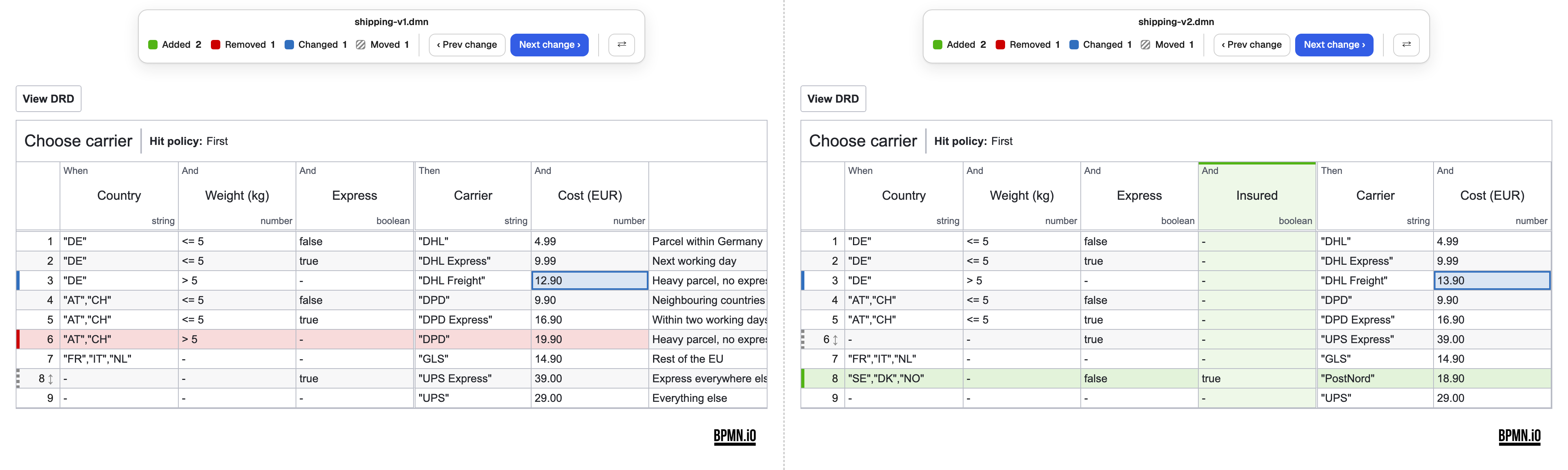
| Highlight | Meaning |
|---|---|
| Green row or column | Added rule or input or output column |
| Red row or column | Removed rule or column |
| Blue cell | Changed entry or annotation; its rule number gets a blue bar |
| Blue column header | Changed label, expression or type |
| Striped rule number with ↕ | Moved rule: same content, new position. Order decides a FIRST or PRIORITY table. |
| Blue hit policy | Changed table setting, such as the hit policy or its aggregation |
The rule numbers stay in view while the table scrolls sideways. Scroll one table and the other follows to the same rule, even where rules were inserted or removed. A decision that exists in only one version shows Not in this version in the other pane, with a button back to the DRD. A changed literal expression or business knowledge model shows a coloured bar beside its expression.
Step through the changes
The legend above each pane counts the changes in the open view: the DRD, or the open table. Prev change and Next change step through them and move both panes together; the current change glows gold. In the DRD they go from top to bottom, then left to right; in a table, the table's settings first, then the columns, then the rules. A requirement or association that only moved along with its shapes is highlighted and counted, but not a step of its own. Both panes are read-only, but you can pan and zoom the DRD and scroll the tables.
The comparison follows element ids, as the BPMN diff does: a rule you copy and paste gets a new id and shows as removed and added. The colours are the BPMN diff's.
The DMN diff runs in VS Code. IntelliJ has no DMN editor yet.
Next steps
- BPMN diff: compare two versions of a process.
- Deployment: deploy the reviewed decisions.