Element template editor
Build Camunda element templates for Camunda 7 and Camunda 8 in a form instead of writing JSON by hand, and see the properties panel the template produces while you work.
Create a template
- Run Miragon BPMN Modeler: New Element Template from the Command Palette, or choose File > New File… > Element Template.
- Enter a file name. A name with spaces becomes kebab-case:
Send Invoice Mailcreatessend-invoice-mail.json. The file goes into<configFolder>/element-templates/of your workspace folder (.camunda/element-templates/by default), where the modelers load templates from. In a workspace with several folders you pick the folder first; without an open folder you pick the file in a save dialog. An existing file is never overwritten. - The editor opens with a short start form. Pick the engine and the element type the template is for, check the name, which starts from the file name, and click Create template. The template's
idcomes from the file name.
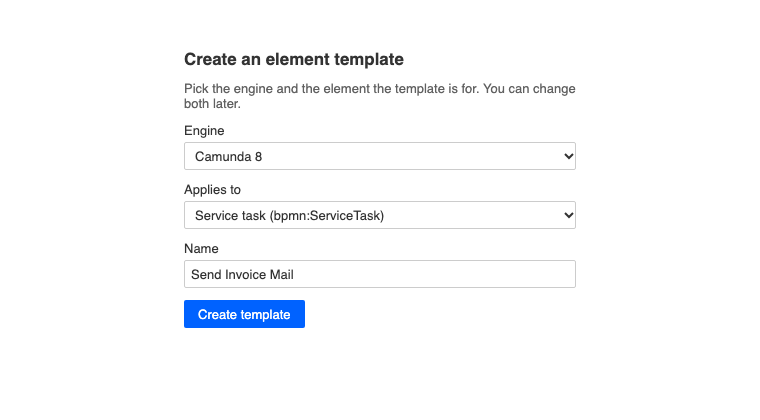
The template is saved like any other file. Diagrams that load templates from that folder offer it in the template chooser as soon as it is saved.
Open a template
- A
.jsonfile in a folder namedelement-templatesopens in the template editor. The chooser only loads templates from the one below the config folder. - A template elsewhere, a
.jsonfile whose$schemanames an element template schema, opens as JSON. Click Open in Element Template Editor in its editor title, or use Open With…. $schemadecides the engine:…/element-templates-json-schema/…for Camunda 7,…/zeebe-element-templates-json-schema/…for Camunda 8. A template without$schemaasks for the engine and writes the matching$schema.- A file with several templates gets a picker in the toolbar to choose which one to edit, which also says where you are, such as 3 of 15.
Find your way around
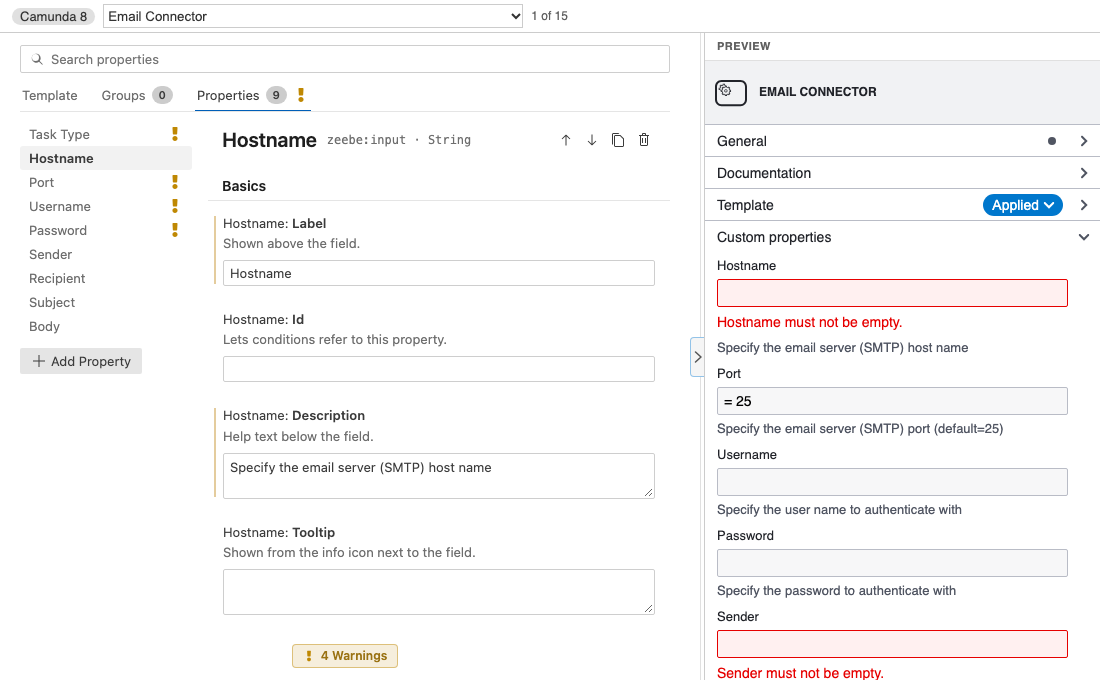
The editor is laid out like VS Code's settings editor:
- Template, Groups and Properties tabs. Each tab shows how many items it lists and the worst problem in it.
- The search box narrows the current tab: properties by label, id or binding, groups by label or id, template settings by name or description. The tabs count what matches, and a tab without matches links to the tabs that have some.
- The list on the left shows the groups or properties; click one to edit its settings.
- Each setting is titled like Hostname: Label, with a short description below. A bar marks the values the JSON sets.
The preview on the right shows the properties panel the template produces, with the template's groups open so you see its fields right away; in the modeler they start collapsed, unless a Camunda 8 group sets openByDefault. Drag its divider to resize it, or click the arrow on the divider to hide and show it. The preview closes when the editor gets narrow, for example with the JSON next to it, and comes back when it widens.
Edit the template
Template holds the name, id, version, description and documentation link, the element types the template applies to and, optionally, the element type it turns the element into when it is applied (with the event definition for events).
Groups put properties under their own heading in the properties panel. Add, rename and delete groups here; renaming a group's id moves its properties along. A property's Group setting moves it into a group.
Properties are the fields users fill in:
- Add Property, and the buttons next to a property's name to move it up or down, duplicate it or delete it.
- Binding decides where the value is written, for example an input mapping, a task header or a BPMN attribute; on Camunda 7 also a call activity's in and out mappings and business key. The list starts with what works on the elements the template applies to. Below it come the bindings for other element types, and those you can only edit in the JSON so far, which you cannot pick. The binding's own fields follow, and switching the binding removes only what the new one does not allow.
- Type is the kind of field users see: String, Text, Boolean, Number, Dropdown or Hidden. A Dropdown gets its Choices here.
- Value is what new elements start with; for a Hidden property it is always written.
- Options such as Editable, Required, minimum and maximum length, a Pattern with its message and a Placeholder. On Camunda 8 also FEEL, Optional, Tooltip, the property's Id and Show only when: conditions on other properties (Equals, Is one of, Is shown, Is empty) that must all hold for the field to show.
Keys the editor does not have a field for stay as they are; a note under the property names them. A property with a binding the editor does not edit yet keeps its binding and can be edited in the JSON.
Fix problems
The chip at the bottom of the form sums up the problems, for example 3 Errors, 4 Warnings. Click it to list them above it, errors first; Esc or switching the tab closes the list. Show opens the tab and the property a problem is about and focuses its field. Some problems offer a fix in one click, such as adding the property a binding needs, setting the element type it needs, or replacing what is deprecated.
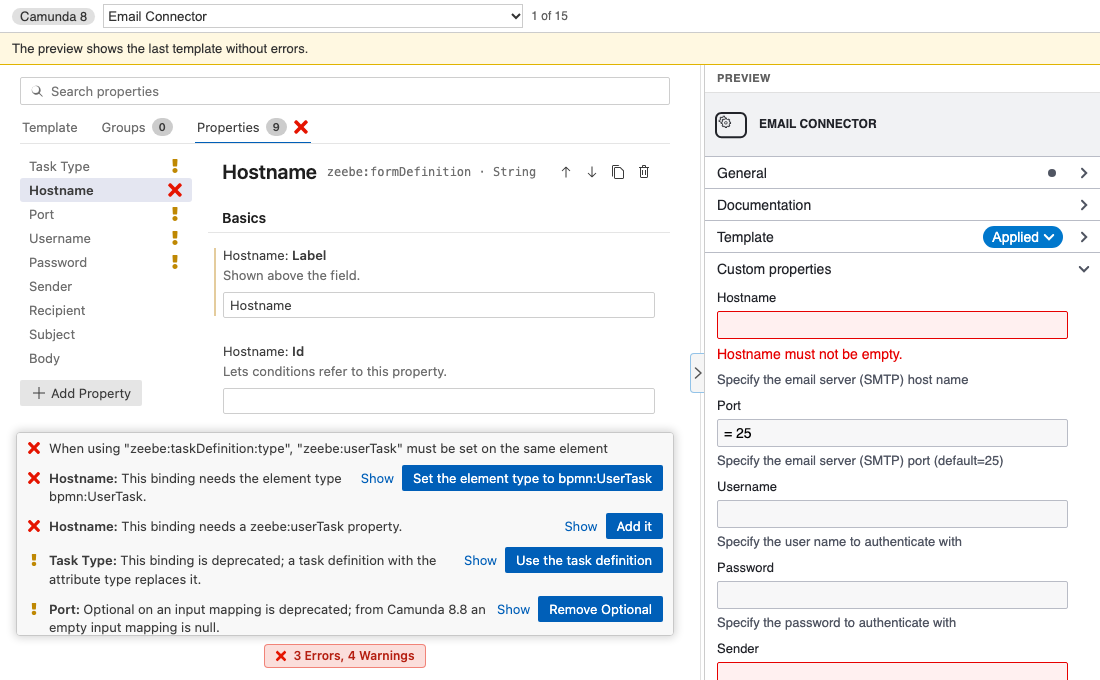
The problems come from the official Camunda validator and from checks the schemas cannot make:
- property ids are unique;
- conditions and groups refer to properties and groups that exist;
- a Dropdown's value is one of its choices;
- a form is set by either a form id or an external reference;
- group ids are unique;
- a binding has what it needs elsewhere, such as the element type or another property, and is on an element it works on.
While the template has errors, the preview keeps showing the last template without errors and says so.
The JSON
The JSON stays the source of truth. Click Toggle JSON Editor in the editor title to open it next to the template editor, with completion from its $schema; click it again in the template editor to close it. The extension marks the two published schema URLs as trusted, so VS Code downloads them without further setup. A version-pinned URL (…-json-schema@0.9.0/…) or another CDN still warns that the location is untrusted; the quick fix Configure Trusted Domains… covers those.
- Every change in the form edits only the part of the file it concerns. Your formatting and keys the editor does not know stay as they are, and Undo takes back one change at a time.
- Changes in the JSON show up in the form right away.
- While the JSON is broken, the form shows the last valid template read-only and says what is wrong.
- Saving the file saves the changes of the form too.
- If the JSON has a shape that a change cannot be written into, for example an
elementTypethat is not an object, the editor writes nothing and says where to fix it.
Limitations
- Templates for a process or a sequence flow cannot be previewed yet; they can still be created and edited.
- The template editor is available in VS Code and the desktop app, not in IntelliJ yet.
Next steps
- Element templates: apply templates and decide where they live.
- Template marketplace: share templates across projects.
- Language support: the editor follows the modeler's language.